Configure Unity Workspace Layout in Ubuntu
Note: This post describes Unity 7 and Compiz, Ubuntu’s default desktop through Ubuntu 16.04 LTS. Canonical ended its work on Unity in 2017, and the default switched to GNOME Shell starting with Ubuntu 17.10 — where workspaces are configured differently and
compizconfig-settings-managerno longer applies. The steps below are kept as a historical walkthrough; they still work on the community-maintained Ubuntu Unity flavor.
Why change the layout?
Every time I upgrade to a new Ubuntu release, the desktop defaults to a 2×2 workspace grid.
I don’t stack monitors vertically, so vertical workspaces don’t match how I work — I’m used to laying screens out horizontally. Here’s how to switch to a single horizontal row.
Install CompizConfig Settings Manager
Unity’s workspace layout is driven by Compiz, which you tune through the CompizConfig Settings Manager (CCSM). It isn’t installed by default, so add it first:
sudo apt-get install compizconfig-settings-manager
Launch it by pressing the Super key, typing compiz, and clicking the icon when it appears.
Set a horizontal layout
In the CCSM window, go to General → General Options → Desktop Size.
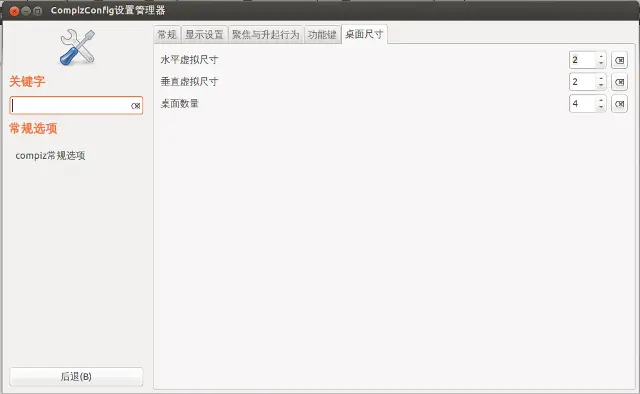
Two values define the workspace grid:
- Horizontal Virtual Size — the number of workspaces in a row.
- Vertical Virtual Size — the number of rows.
To get a single horizontal strip, set Horizontal Virtual Size to the number of workspaces you want (for example, 4) and Vertical Virtual Size to 1. The change applies immediately — no logout required.
References
- Ubuntu Unity — the community-maintained Unity 7 flavor
- Unity (user interface) — history and version timeline
The Disqus comment system is loading ...
If the message does not appear, please check your Disqus configuration.