Create a Desktop App with Angular 2 and Electron
Last week, I took part in the Google Developer Day held in Beijing. The Angular team introduced their new Angular 2. Angular is a development platform for building mobile and desktop web applications.
This tutorial shows how to configure and use Angular 2 web components with the Electron framework for creating native cross-platform applications with web technologies.
As recommended by the Angular team, TypeScript will be used throughout this tutorial. TypeScript is a typed superset of JavaScript that compiles to plain JavaScript. Any browser. Any host. Any OS. Open-source.
You will get a link to the finished working example on GitHub at the end of the article.
Note: This tutorial targets Angular 2 with the 2016 toolchain,
typings,SystemJS, and Electron 1.x. Bothtypingsand the manualSystemJSsetup have since been deprecated; for a new project today you’d reach for the Angular CLI and a bundler instead. The integration concepts below still hold, so the post is kept as a historical walkthrough.
Prerequisites
Before starting, please make sure that node, npm, typescript, typings are installed.
npm install -g typescript typings
Setup Electron with TypeScript
The first thing you want to do is to initialize your project using package.json:
{
    "name": "App-Name",
    "version": "1.0.0",
    "main": "main.ts",
    "scripts": {
        "start": "tsc main.ts && electron main.js",
        "clean": "rm -Rf *.log *.js",
        "tsc:w": "tsc -w",
        "typings": "typings",
        "postinstall": "typings install"
    },
    "author": "Your Name",
    "license": "GPL-2.0",
    "devDependencies": {
        "typescript": "~2.1.4",
        "typings": "^2.0.0"
    },
    "dependencies": {
        "electron": "^1.4.12"
    }
}
Typings
The type definition files used by this project are managed by the “typings” TypeScript Definition Manager, version 1.0 or higher. It is not necessary to have “typings” installed just to run this application. If you haven’t installed this, you’ll need to install “typings” as a global NPM module:
npm install -g typings
The type definitions are committed to source control, as the typings.json file and the typings subdirectory. To get the latest type definitions, delete that file and subdirectory and replace them by running the following commands:
typings install dt~electron/github-electron --save --global
typings install dt~node --save --global
After that, a directory named typings and a file named typings.json are created.
TypeScript
Next, you’ll need to set up TypeScript. For this, you’ll need a tsconfig.json file in your root. I’ll just give you the file you’ll need here:
{
    "compilerOptions": {
        "target": "es5",
        "module": "commonjs",
        "moduleResolution": "node",
        "sourceMap": true,
        "emitDecoratorMetadata": true,
        "experimentalDecorators": true,
        "removeComments": false,
        "noImplicitAny": false
    },
    "exclude": [
        "node_modules",
        "typings"
    ]
}
Please note the exclude option. This setting greatly improves performance when using Atom or IntelliJ for development.
The Electron Shell with TypeScript
Now comes the fun part. Instead of the usual JavaScript main process from Electron’s quickstart, we’ll write the shell as a TypeScript file, same ready / window-all-closed lifecycle, just with types and arrow functions. Create main.ts:
/// <reference path="typings/index.d.ts" />
import electron = require("electron");
let app = electron.app;
let BrowserWindow = electron.BrowserWindow;

// Keep a global ref so the garbage collector doesn't close it.
let mainWindow : Electron.BrowserWindow;

// Opens the main window, with a native menu bar.
function createWindow() {
    // Create the browser window.
    mainWindow = new BrowserWindow({width: 800, height: 600});

    // and load the index.html of the app.
    mainWindow.loadURL(`file://${__dirname}/index.html`);

    // Open the DevTools.
    // mainWindow.webContents.openDevTools();

    // Emitted when the window is closed.
    mainWindow.on("closed", () => {
        // Dereference the window object. (With multi-window apps,
        // delete the matching array entry here instead.)
        mainWindow = null;
    });
}

// Call 'createWindow()' on startup.
app.on("ready", () => {
    createWindow();
});

// On OS X, apps and their menu bar stay active until the
// user quits explicitly with Cmd + Q.
app.on("window-all-closed", () => {
    if (process.platform !== "darwin") {
        app.quit()
    }
});

// On OS X, re-create a window when the dock icon is clicked
// and no other windows are open.
app.on("activate", () => {
    if (mainWindow === null) {
        createWindow();
    }
});
Finally, create an HTML file named index.html containing the following contents:
<!DOCTYPE html>
<html>
<head>
    <meta charset="UTF-8">
    <title>Hello World!</title>
</head>
<body>
    <h1>Hello World!</h1>
    <!-- All of the Node.js APIs are available in this renderer process. -->
    We are using node <script>document.write(process.versions.node)</script>,
    Chromium <script>document.write(process.versions.chrome)</script>,
    and Electron <script>document.write(process.versions.electron)</script>.
</body>
</html>
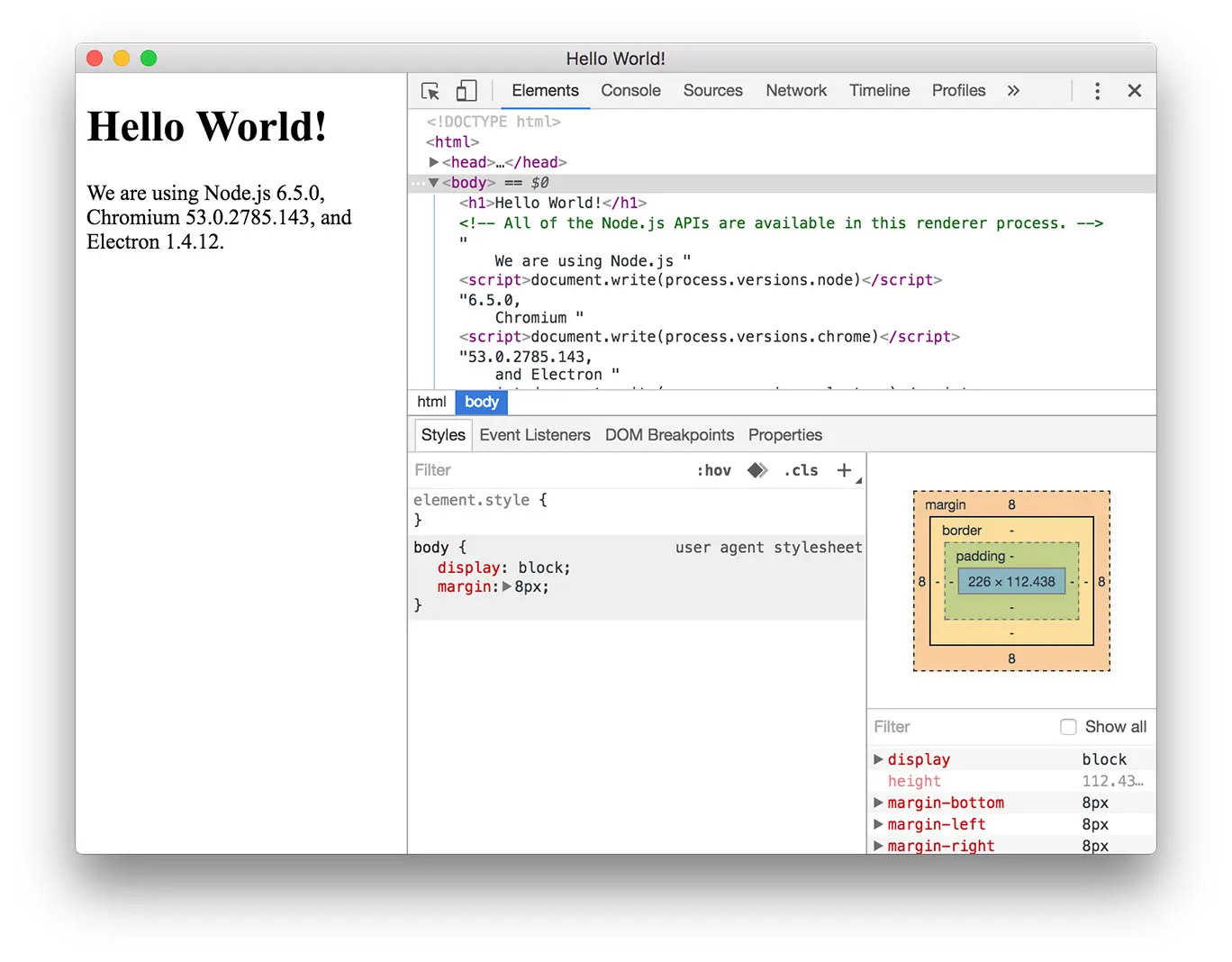
Running application
npm install && npm start
and you should see something like the following:
Setup Electron with Angular 2
Building on the package.json from the Electron setup, update the start script so it runs the TypeScript watch compiler alongside Electron (via concurrently), and add the Angular runtime and its peer libraries as dependencies. Merge these keys into your existing package.json:
{
    "scripts": {
        "start": "tsc && concurrently \"npm run tsc:w\" \"electron main.js\"",
        "clean": "rm -Rf *.log *.js *.map app/*.js app/*.map"
    },
    "devDependencies": {
        "concurrently": "^3.0.0",
        "electron-packager": "^8.4.0"
    },
    "dependencies": {
        "@angular/common": "^2.3.0",
        "@angular/compiler": "^2.3.0",
        "@angular/core": "^2.3.0",
        "@angular/http": "^2.3.0",
        "@angular/material": "2.0.0-alpha.11-3",
        "@angular/platform-browser": "^2.3.0",
        "@angular/platform-browser-dynamic": "^2.3.0",
        "reflect-metadata": "^0.1.8",
        "rxjs": "5.0.0-rc.4",
        "systemjs": "^0.19.41",
        "zone.js": "^0.7.2"
    }
}
You will need to install new libraries once updating your package.json file:
npm install
Then, you need to install another two typings for Angular:
typings install dt~core-js --save --global
typings install dt~jasmine --save --global
Next, create a file named systemjs.config.ts (it compiles to the systemjs.config.js that index.html loads below):
/** Type declaration for ambient System. */
declare var System: any;

/**
 * System configuration for Angular samples
 * Adjust as necessary for your application needs.
 */
System.config({
    paths: {
        // paths serve as alias
        'npm:': 'node_modules/'
    },
    // map tells the System loader where to look for things
    map: {
        // our app is within the app folder
        app: 'app',
        // angular bundles
        '@angular/common': 'npm:@angular/common/bundles/common.umd.js',
        '@angular/compiler': 'npm:@angular/compiler/bundles/compiler.umd.js',
        '@angular/core': 'npm:@angular/core/bundles/core.umd.js',
        '@angular/platform-browser': 'npm:@angular/platform-browser/bundles/platform-browser.umd.js',
        '@angular/platform-browser-dynamic': 'npm:@angular/platform-browser-dynamic/bundles/platform-browser-dynamic.umd.js',
        '@angular/http': 'npm:@angular/http/bundles/http.umd.js',
        // other libraries
        'rxjs': 'npm:rxjs',
    },
    // packages: how to load when no filename/extension is given
    packages: {
        app: {
            main: './main.js',
            defaultExtension: 'js'
        },
        '@angular/material': {
            format: 'cjs',
            main: 'npm:@angular/material/material.umd.js'
        },
        rxjs: {
            defaultExtension: 'js'
        }
    }
});
Update index.html to pull in the Angular libraries, configure SystemJS, and bootstrap the app. Add the following inside <head>:
<!-- 1. Load libraries -->
<!-- Polyfill(s) for older browsers -->
<script src="node_modules/core-js/client/shim.min.js"></script>
<script src="node_modules/zone.js/dist/zone.js"></script>
<script src="node_modules/reflect-metadata/Reflect.js"></script>
<script src="node_modules/systemjs/dist/system.src.js"></script>
<!-- 2. Configure SystemJS -->
<script src="systemjs.config.js"></script>
<script>
    System.import('app').catch(function(err){ console.error(err); });
</script>
Then swap the static <h1>Hello World!</h1> in <body> for the Angular root element:
<my-app>Loading...</my-app>
Simple Angular 2 application
This step is the standard Angular component setup and isn’t Electron-specific; it mirrors the “first component” chapter of the official Angular quickstart.
Create an app subfolder in the project root directory to hold the following files:
app/app.module.ts
import { NgModule }      from '@angular/core';
import { BrowserModule } from '@angular/platform-browser';
import { AppComponent }  from './app.component';

@NgModule({
  imports:      [ BrowserModule ],
  declarations: [ AppComponent ],
  bootstrap:    [ AppComponent ]
})
export class AppModule { }
app/app.component.ts
import { Component } from '@angular/core';

@Component({
  selector: 'my-app',
  template: '<h1>My First Angular 2 App with Electron</h1>'
})
export class AppComponent { }
app/main.ts
import { platformBrowserDynamic } from '@angular/platform-browser-dynamic';
import { AppModule }              from './app.module';

const platform = platformBrowserDynamic();
platform.bootstrapModule(AppModule);
Running application
npm start
The start command compiles your TypeScript code and launches an Electron instance with your application loaded automatically.
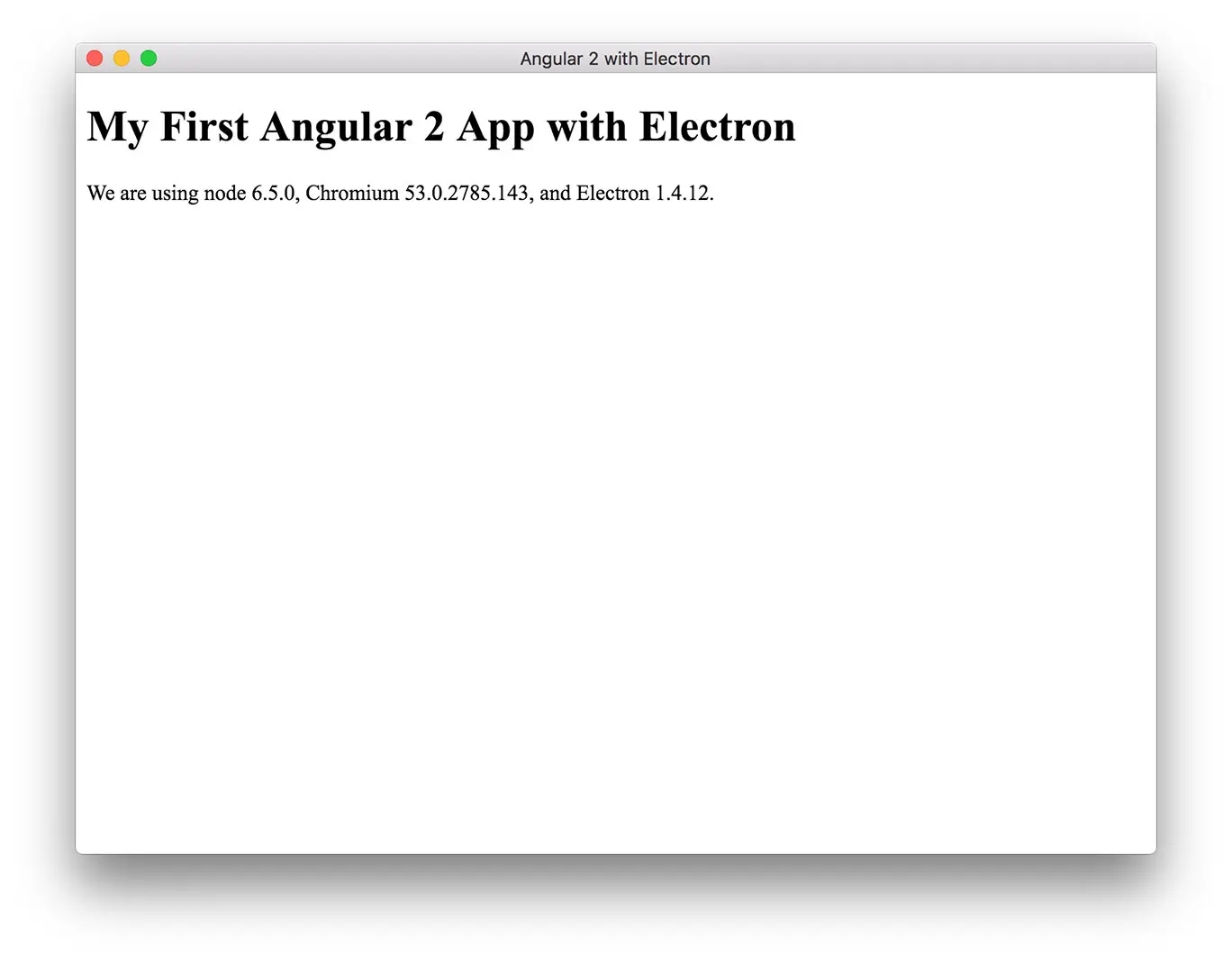
Also, note that the start command runs the TypeScript compiler in watch mode. Every time you change your code it should be enough just reloading Electron via “View ⟶ Reload” or with Cmd + R (Ctrl + R on Windows).
Talking to the OS from Angular
So far the app only renders HTML, nothing you couldn’t do in a plain browser. The reason to wrap Angular in Electron is that the same component code can reach Node.js and native OS APIs. Let’s prove it by wiring a button to a native dialog.
Update app/app.component.ts:
import { Component } from '@angular/core';

// Electron exposes Node.js in the renderer, so require() works here.
const { dialog } = require('electron').remote;

@Component({
  selector: 'my-app',
  template: `
    <h1>My First Angular 2 App with Electron</h1>
    <button (click)="sayHello()">Show native dialog</button>
  `
})
export class AppComponent {
  sayHello() {
    dialog.showMessageBox({ message: 'Hello from Node + Electron!' });
  }
}
Reload the window and click the button; a real OS dialog pops up, driven straight from an Angular event handler. That round-trip from web UI to native API is the whole point of building on Electron rather than shipping a web page.
In Electron 1.x,
nodeIntegrationis enabled by default, sorequire('electron')works in the renderer out of the box. Newer Electron versions disable it; there you’d expose APIs through a preload script and the context bridge instead.
Troubleshooting
If the compiler reports a Duplicate identifier 'PropertyKey' error, remove "@types/core-js": "0.9.34" from devDependencies in package.json, and make sure tsconfig.json excludes the generated type folders so the definitions aren’t loaded twice:
"exclude": [
    "node_modules",
    "typings"
]
Conclusion
You now have an Angular 2 application running inside Electron, with TypeScript recompiling on save and a component that calls native OS APIs. From here you can package the app for distribution with electron-packager (already in your devDependencies), or grow the UI into something real. The source code below builds this same skeleton into a small note-taking app.
Source Code
The source code for this tutorial is open-sourced on GitLab.
The Disqus comment system is loading ...
If the message does not appear, please check your Disqus configuration.