Enable Unattended RustDesk Access on Wayland
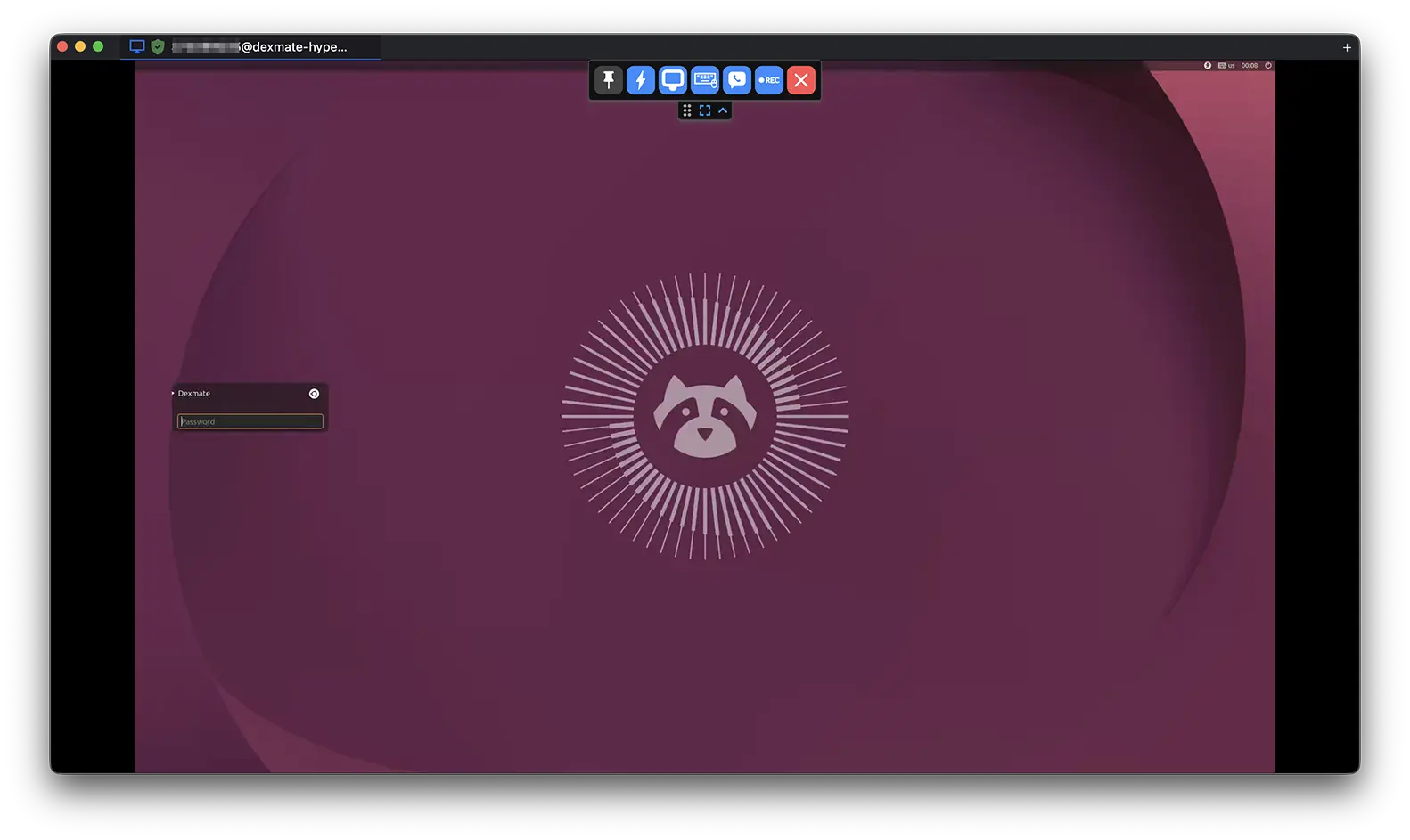
Ubuntu uses GNOME on Wayland by default. RustDesk works well once someone is sitting at the machine, but unattended access runs into two obstacles: the graphical login screen, and the screen-share prompt GNOME shows after login.
On my Ubuntu 26.04 system, the practical solution was to use an X11-based LightDM login screen while keeping the normal Ubuntu GNOME Wayland desktop after login, and to approve screen sharing once so that later connections do not ask again:
LightDM + Slick Greeter + X11           ← RustDesk captures the login screen directly
                ↓
Ubuntu + GNOME + Wayland                ← RustDesk reuses a remembered screen-share grant
This gives RustDesk access from the login screen to the desktop without replacing the everyday Ubuntu desktop.
Compatibility: This guide uses Ubuntu 26.04 LTS as an example. The same approach may work on other Ubuntu releases, but the package names and session configuration are Ubuntu-specific. It should not be treated as a universal solution for every Wayland desktop.
The Problem
Wayland provides stronger isolation between applications than X11. This is useful for security, but it also means remote-desktop applications cannot capture the screen as freely as they could under X11. For unattended access, this causes two problems.
The login screen. RustDesk supports Wayland, but the graphical login screen is a special case: it exists before the user’s Wayland session starts, so RustDesk has no session to capture it through.
The screen-share prompt. After login, RustDesk has to ask GNOME for permission to capture the screen. GNOME shows a Share Screen dialog on the remote machine, and the RustDesk client waits at:
Please select the screen to be shared(Operate on the peer side).
With nobody at the machine to click Share, the request times out after three minutes.
The goal is therefore not to replace Wayland completely. It is to use X11 only for the login screen, and to approve screen sharing once instead of on every connection.
How the Setup Works
The relevant components have different roles:
| Component | Role |
|---|---|
| GDM3 | Ubuntu’s default display manager |
| LightDM | An alternative display manager |
| Slick Greeter | The login interface shown by LightDM |
| GNOME | Ubuntu’s desktop environment |
| Wayland | The display system used after login |
| X11 | The display system used by the LightDM greeter |
| xdg-desktop-portal | Asks the user before an application can capture the screen, and remembers the answer |
GDM3 and LightDM are display managers. They show the login screen, authenticate the user, and launch the selected desktop session. GNOME is the desktop shown after login, so replacing GDM3 with LightDM does not replace GNOME. The gdm3 package may remain installed, but LightDM becomes the active display manager.
After login, RustDesk captures the screen through xdg-desktop-portal. When the Share Screen dialog is approved with Remember this selection, the portal stores the grant in its permission store and hands RustDesk a restore token. The next time RustDesk connects, it presents the token and the portal shares the same monitors without asking.
Setup
1. Install LightDM and Slick Greeter
sudo apt update
sudo apt install lightdm slick-greeter
When prompted to choose a display manager, select:
lightdm
If the prompt does not appear, run:
sudo dpkg-reconfigure lightdm
2. Configure LightDM
Create the configuration directory:
sudo install -d -m 755 /etc/lightdm/lightdm.conf.d
Create /etc/lightdm/lightdm.conf.d/90-local.conf:
[LightDM]
sessions-directory=/usr/share/lightdm/sessions:/usr/share/xsessions:/usr/share/wayland-sessions

[Seat:*]
greeter-session=slick-greeter
user-session=ubuntu
greeter-session=slick-greeter gives LightDM a polished login screen with the classic Ubuntu look. No custom wallpaper configuration is required.
user-session=ubuntu launches the standard Ubuntu GNOME session after login. On Ubuntu 26.04, that session runs on Wayland.
The sessions-directory line allows LightDM to discover both X11 and Wayland sessions.
3. Reboot and Verify
Reboot the system:
sudo reboot
After logging in, verify the desktop session:
echo "$XDG_SESSION_TYPE"
echo "$DESKTOP_SESSION"
Expected output:
wayland
ubuntu
This confirms that the desktop is still the standard Ubuntu Wayland session. To confirm that LightDM is the active display manager:
readlink -f /etc/systemd/system/display-manager.service
The result should point to lightdm.service. You can also check:
systemctl status display-manager
RustDesk can now reach the login screen. The remaining steps get it past the screen-share prompt after login.
4. Approve Screen Sharing Once
The first approval has to happen at the machine. Connect with RustDesk, and when the Share Screen dialog appears:
- Click every monitor you want to share. Each click toggles one monitor, so multiple monitors can be selected.
- Keep Remember this selection checked.
- Click Share.
GNOME stores the grant in the screencast table of the portal permission store, and RustDesk saves the matching restore token in ~/.config/rustdesk/RustDesk_local.toml:
wayland-restore-token = '...'
Both are kept on disk, so the grant survives reboots. To check it:
TOKEN=$(grep -oP "wayland-restore-token = '\K[^']+" ~/.config/rustdesk/RustDesk_local.toml)
gdbus call --session \
  --dest org.freedesktop.impl.portal.PermissionStore \
  --object-path /org/freedesktop/impl/portal/PermissionStore \
  --method org.freedesktop.impl.portal.PermissionStore.Lookup screencast "$TOKEN"
The output lists the remembered monitors by their EDID serial numbers.
5. Keep the Grant From Disappearing
In theory, step 4 is enough. In practice, the grant can disappear on its own.
Restore tokens are single-use. When RustDesk restores a session, the portal removes the grant from the permission store and writes it back only after the session has started. If that start fails, the grant is gone, and the next connection shows the dialog again. In my case, the monitors were waking up from standby when I connected, RustDesk’s request timed out after one second, and the remembered selection was lost.
The fix is a small script that backs up the grant while it exists, and writes it back if it goes missing. A successful restore puts the grant back within about a second, so the script waits a few seconds before stepping in.
Create ~/.local/bin/rustdesk-grant-keeper:
#!/usr/bin/env python3
# Back up RustDesk's remembered screen-share grant, and put it back
# if the portal drops it after a failed restore.
import re
import time
from pathlib import Path

from gi.repository import Gio, GLib

CONFIG = Path.home() / ".config/rustdesk/RustDesk_local.toml"
BACKUP_DIR = Path.home() / ".local/state/rustdesk-grant-keeper"
STORE = "org.freedesktop.impl.portal.PermissionStore"
STORE_PATH = "/org/freedesktop/impl/portal/PermissionStore"

bus = Gio.bus_get_sync(Gio.BusType.SESSION)


def call(method, signature, *args):
    return bus.call_sync(STORE, STORE_PATH, STORE, method,
                         GLib.Variant(signature, args), None,
                         Gio.DBusCallFlags.NONE, -1, None)


def get_token():
    if not CONFIG.exists():
        return None
    match = re.search(r"wayland-restore-token = '(.+?)'", CONFIG.read_text())
    return match.group(1) if match else None


def lookup(token):
    try:
        return call("Lookup", "(ss)", "screencast", token)
    except GLib.Error:
        return None


def restore(token, text):
    grant = GLib.Variant.parse(GLib.VariantType("(a{sas}v)"), text, None, None)
    permissions = grant.get_child_value(0).unpack()
    data = grant.get_child_value(1).get_variant()
    call("Set", "(sbsa{sas}v)", "screencast", True, token, permissions, data)


BACKUP_DIR.mkdir(parents=True, exist_ok=True)
while True:
    time.sleep(2)
    token = get_token()
    if token is None:
        continue

    backup = BACKUP_DIR / token
    grant = lookup(token)
    if grant is not None:
        text = grant.print_(True)
        if not backup.exists() or backup.read_text() != text:
            backup.write_text(text)
            print(f"Backed up grant {token}", flush=True)
        continue

    # The grant is missing. Give a normal restore time to put it back.
    time.sleep(3)
    if backup.exists() and lookup(token) is None:
        restore(token, backup.read_text())
        print(f"Restored grant {token}", flush=True)
Make it executable:
chmod +x ~/.local/bin/rustdesk-grant-keeper
Then run it as a user service that starts with the desktop session. Create ~/.config/systemd/user/rustdesk-grant-keeper.service:
[Unit]
Description=Keep RustDesk's remembered Wayland screen-share grant
PartOf=graphical-session.target
After=graphical-session.target

[Service]
ExecStart=%h/.local/bin/rustdesk-grant-keeper
Restart=on-failure
RestartSec=5

[Install]
WantedBy=graphical-session.target
Enable and start it:
systemctl --user daemon-reload
systemctl --user enable --now rustdesk-grant-keeper.service
The journal shows when the keeper backs up or restores the grant:
journalctl --user -u rustdesk-grant-keeper
Security: While the keeper runs, deleting the grant no longer revokes RustDesk’s screen access. Stop the keeper first whenever you want to revoke or change the grant.
The final setup is:
- LightDM + Slick Greeter for login
- Ubuntu + GNOME + Wayland for the desktop
- A remembered screen-share grant, kept alive by a small user service
It keeps the normal Ubuntu experience while making unattended RustDesk access, from the login screen to the desktop, much more practical.
Known Issues
With LightDM as the display manager, pressing Super + L no longer locks the screen. GNOME’s built-in shortcut relies on GDM3’s screen locking, which is unavailable under LightDM.
The workaround is to rebind Super + L to LightDM’s own lock command. First, release the built-in binding:
gsettings set org.gnome.settings-daemon.plugins.media-keys screensaver "[]"
Then, in Settings → Keyboard → Custom Shortcuts, add a new shortcut that runs:
dm-tool lock
and assign Super + L to it. This restores manual screen locking.
However, automatic screen locking (after the idle timeout) still does not work under this setup. Only manual locking via the shortcut is available.
Change the Shared Monitors
To pick a different set of monitors, delete the grant and let the dialog appear again. The portal also caches the grant in memory, so it has to be restarted:
systemctl --user stop rustdesk-grant-keeper.service
TOKEN=$(grep -oP "wayland-restore-token = '\K[^']+" ~/.config/rustdesk/RustDesk_local.toml)
gdbus call --session \
  --dest org.freedesktop.impl.portal.PermissionStore \
  --object-path /org/freedesktop/impl/portal/PermissionStore \
  --method org.freedesktop.impl.portal.PermissionStore.Delete screencast "$TOKEN"
systemctl --user restart xdg-desktop-portal
Reconnect with RustDesk, approve the new selection at the machine, and start the keeper again. It picks up RustDesk’s new token automatically:
systemctl --user start rustdesk-grant-keeper.service
Restore the Default Configuration
To switch back to Ubuntu’s default display manager:
sudo dpkg-reconfigure gdm3
sudo reboot
Select gdm3 when prompted.
After confirming that GDM3 works, LightDM can optionally be removed:
sudo apt purge lightdm slick-greeter
sudo apt autoremove --purge
The screen-share grant and the keeper do not depend on LightDM, so they keep working under GDM3. To remove the keeper as well:
systemctl --user disable --now rustdesk-grant-keeper.service
rm ~/.local/bin/rustdesk-grant-keeper ~/.config/systemd/user/rustdesk-grant-keeper.service
rm -r ~/.local/state/rustdesk-grant-keeper
The Disqus comment system is loading ...
If the message does not appear, please check your Disqus configuration.